New Shoulder-View camera have issues.

  • Game Version: v0.3.0
  • Platform: (Windows PC Steam)
  • Mods: never used
  • Hardware Specifications & Operating System (OS version, CPU, GPU, RAM, storage…): RTX3070, 32GB
  • Issue Date: 20/8/2025
  • Error Message (optional):
  • Details (Providing reproduction steps helps us):

Hi. Shoulder-View camera after recent update is not good and have few issues. It’s not center anymore, but rotating camera feels weird with this new angle. I also can’t fully see my Zoi when zoomed in closely because the camera moved too far to the left. Other players also concerned about the same issues. I hope this get updated, revert to previous version, or add an option in camera settings to adjust it.

  • New Shoulder-View camera.

  • When I zoomed in, the camera’s position moved away too far to the side. I can’t see my Zoi.

  • So I tried to center the camera’s position by using a controller. But when I rotated the camera, it’s not center and also not accurate. (Slightly left in the back view, slightly right in the front view)

  • I can’t focus on Zoi properly with this new Shoulder-View up close.

I actually prefer the over the shoulder as we can see what’s in front of the zoi. But the FOV is too small! We need to see more. A higher FOV will keep the zoi in camera more. Someone on the discord was able to get a wider FOV on an older build but the point is there. Look how much more of the room we can see. We don’t have to keep panning. We can see the Zoi’s arms.
FOV Slider is much needed as i prefer playing in that view over the top down view. Makes it unique from the Sims.

I agree we also need FOV slider, its very useful and make it easier to see in small space interiors & close-up.

I added to wishlist for “Shoulder-View” Camera Settings :

In Camera Settings,

  • Camera vertical offset (Camera position up/down from center)

  • Camera horizontal offset (Camera position left/right from center)

  • Camera rotation & zoom sensitivity

  • Camera field-of-view (FOV)

  • Camera collision speed (Set how fast camera pushed away from blocking walls/objects. The default speed felt too slow for me.)

  • Enable/Disable auto-follow camera rotation

For visibility to the devs, i’m placing this suggestion here since this Bug thread is gaining traction:
Interaction Target Crosshair and Controls for Over the Shoulder

The new Keyboard Interaction mode for Shoulder View shows very good promise but is NOT natural. It does not target what is at the CENTER of the screen. Instead targeting what is in FRONT of the ZOI and relying on pressing “V” to switch targets.

Switching targets is completely unnecessary and unintuitive to players of 3rd person games. Targetting should be manually done by the player focused on the center of the screen like there’s an invisible crosshair.

We also should not have to hold down “Right Click” to look around during Shoulder View. As soon as we switch to Shoulder View, Mouse movements should automatically rotate the screen like most 3rd person games. If we need the mouse for UI Purpose, “Right click” toggle to enable the cursor and disable automatic mouse rotation to be able to click on things on screen. “Right click” toggle again to re-enable Mouse Movement Rotation.

Pressing “F” on an interactable object will pop up the options. Re-enable the mouse cursor automatically when that happens. Allow us also the ability to navigate the options with the WASD or Arrow keys.

Time should be slowed down automatically like the “ALT” does right now whenever the pop up options appear to give us time to decide what to pick.

The most unique thing about InZoi vs the Sims is this Over the Shoulder 3rd person mechanic. Please pursue and lean into it. It’s unique. We can be right there in control and immersed closely in the action compared to the Sims. It just needs better controls and mechanics.

Simple Interaction crosshair visualized. Only appears when an Interactable object is under it.

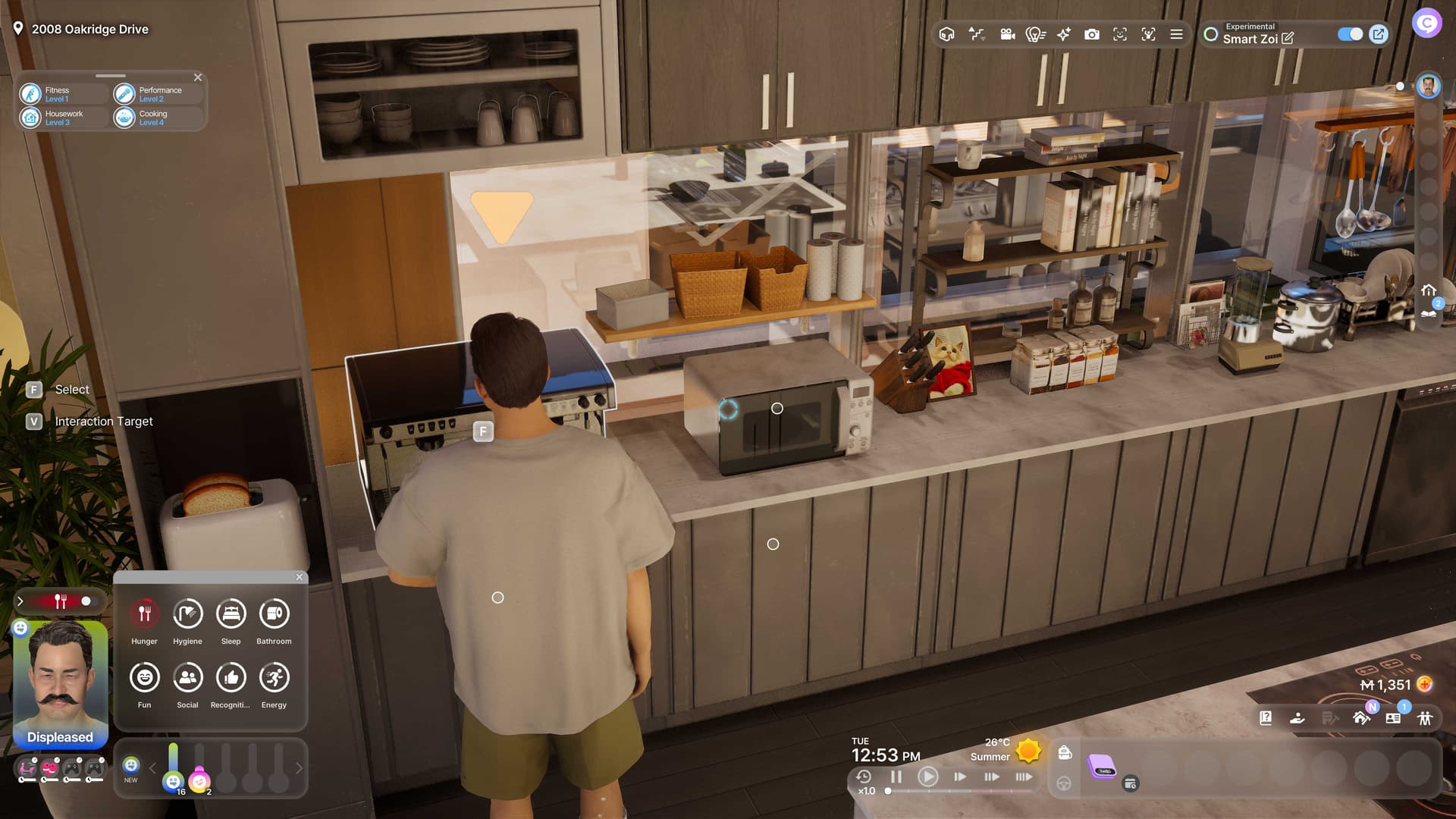
The center of my screen and Interaction crosshair is pointed at the Microwave but my Zoi is targeting the Espresso Machine. This should not happen. The interaction target circles only clutter up the screen needlessly. We only need the Interaction Crosshair that appears when an Interactable object is under it.

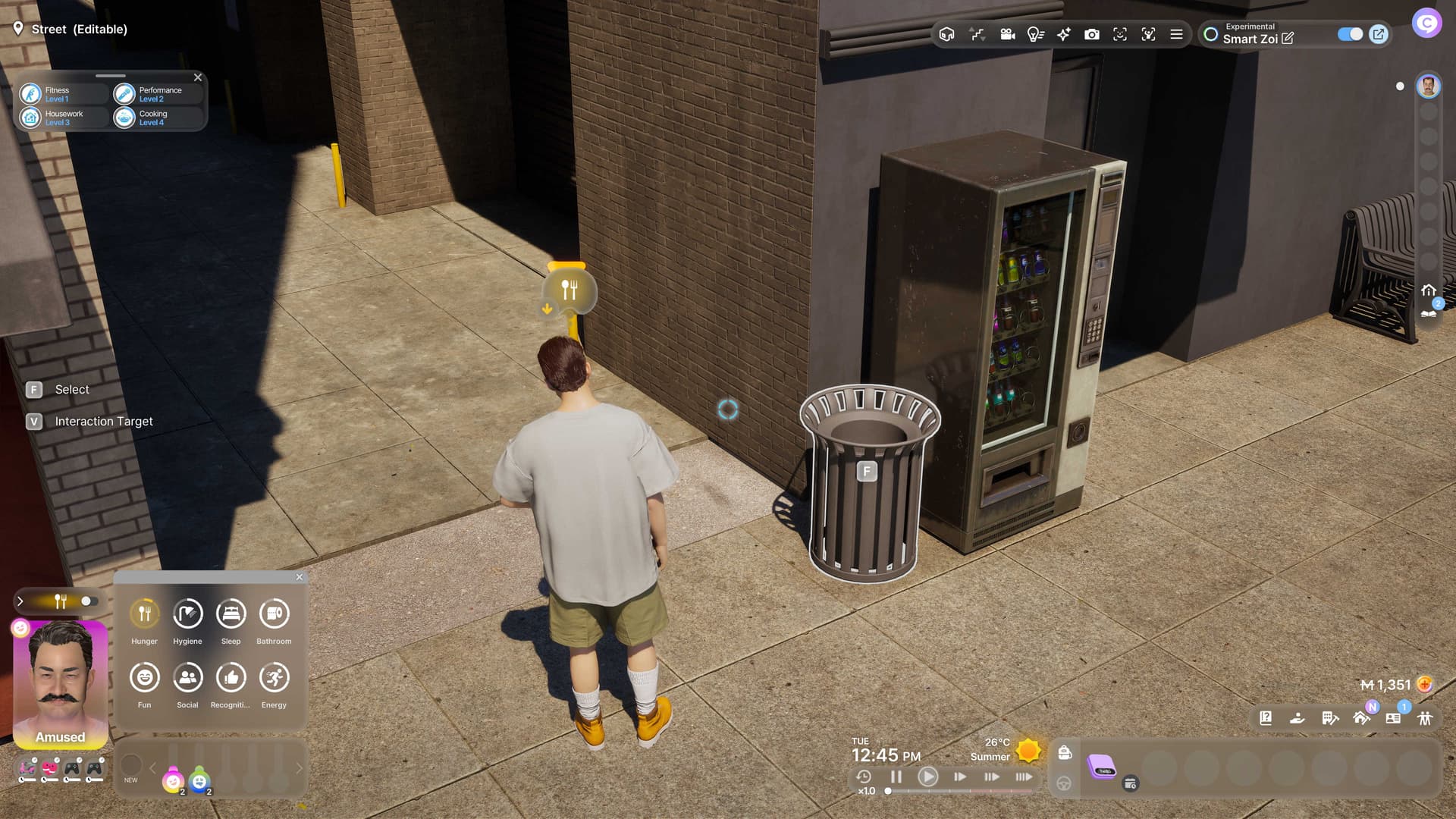
*Another example, The crosshair is not pointed at the garbage yet my zoi is still targeting it. There should be reasonable accuracy so we can pinpoint what exactly it is we want to interact with.

Hi all,
We sincerely apologize for the inconvenience and will continue to make improvements on this matter. Thank you for your feedback!

The new patch seems to have increased the camera collision speed and rotation speed so it feels snappier. It feels better but we definitely need customizable camera settings.

I also tried playing with controller and it does have a Center screen targetting and interaction crosshair in top down view mode. It felt good! That should be the default method for mouse and controller in shoulder view. The proximity interaction is just not accurate enough once we get into busy interiors.

I am currently having issues with this same problem. Makes me want to go back to the sims where this issue doesn’t exist.

  • Game Version: 20250902.7159W

  • Platform: (Steam windows)

  • Mods: None

  • Hardware Specifications & Operating System (windows 11, intel i7 , GPU RTX 3060, RAM 16gb):

  • Issue Date: August 2025

  • Error Message: None

  • Details: Hello, everyone, I hope you can help me with a small technical issue. It’s about the Depth of Field graphics option, which hasn’t been working well for me for some time now. I’ll use photos to describe my problem.

This is a photo from mi game, a few months ago. In it you can clearly see the Depth of Field effect is enabled. At that time I had no problem whatsoever, but lately I’m having trouble with it, especially when it comes to zooming my photos. In the graphic options, it says that Depth of Field “is only active when zoomed in on your character Shoulder View.”

So I activate Shoulder View with the TAB button, and this is what happens. The Depth of Field is there, but the camera has moved in such a way that my zoi can barely be seen.

If I zoom out a little, I can see my zoi now, and the Depth of Field is still there, but if I zoom out a little more, the Depth of Field completely disappears. This is the furthest the camera will let me go without the Depth of Field disappearing.

Also, if I try to center my character to take a photo, I can’t move the camera either right or left. I can only rotate it. (This happens only in Shoulder View).

When I rotate the camera, the Depth of Field effect remains (as long as I don’t zoom out any further), but no matter which way I rotate the camera, I can’t center my zoi; it will always remain on the left side of the screen. I understand that the Depth of Field option is only activated in Shoulder View, but once in Shoulder View, is it normal for the character to always be positioned on the left? Or am I doing something wrong? Is there a way to move the camera to both sides that I don’t know of?

In this picture I took from the InZOI loading screen, the Depth of Field effect can be seen in the background and the characters with the motorcycle appear in the center. This is the kind of effect I’d like to get in my photos!

I’ll appreciate all the help and advice you guys can give me on this little issue. Sorry for the long post and for so many pictures. Thank you for your kind attention! :hugs::pink_heart:

Hi @anamoon63,
I’ve merged your topic into an existing discussion that covers the same issue.
Feel free to follow here for updates and continue the discussion here!

Oh, that’s cool, thank you very much! @AR_Luna :blush:

Having read your post, I have just looked at my in-game photos and realised that only one of them has DoF. They were all taken at the same time, and I don’t use shoulder view, as you can see, so I have no idea what the difference was. But the DoF makes a huge difference to the quality of the image, I love it and would like this in all my pics if possible.

Edit: the images I reference were all taken a couple of days ago, just before the most recent patch.

Thank you ver much for your reply. I love Depth of Field too! I use it in most of my photos, especially for my stories.

I never used Shoulder View either, but now I’m forced to because, at least in my game, you can’t use DOF unless you switch to Shoulder View. Although I think it used to be possible to use it on normal view, and your photo is proof of that, as is the first photo in my original post. Or maybe it has always only been possible in Shoulder View, but previously it was possible to adjust the camera to center the zoi (as in your photo), but not anymore. I wonder what happened, if this is a bug happening only in my game, or some kind of camera setting that I don’t know about.

Your photo here totally proves the point of the first photo in my original post, which is that it used to be possible to use DOF in normal view, or at least that’s how I remember it, and that we could zoom out with the camera even to take full-body shots without DOF stopping working.

I’d like to ask, if I may. In your game, does DOF work in normal view, or only in Shoulder View, since you say this is the only photo you have with DOF? Maybe you accidentally switched to Shoulder View? But if it was Shoulder View, how were you able to zoom out with the camera to take a full body shot of your zoi?

Also, did you take this photo with the in-game camera? Cause for me, if DOF is enabled, it works fine (in Shoulder View of course), but if I take a photo with the in-game camera, the effect disappears instantly and can only be made visible again if I restart the game, regardless of whether it’s enabled in the Options menu.

Sorry for the many questions. Thank you very much for the feedback! :hugs:

I will need to check to see if DoF works in-game, I will try to remember to do that!

The photo I posted was taken very recently, last week sometime (I forget exactly when), with the in-game photo option. I don’t think I used filters, though I know there is a DoF option in there somewhere, I will have to mess with that.

I know for certain I didn’t use shoulder view as I prefer seeing my zoi in the centre of the screen, which as you say is now no longer possible.

I’m not sure why DoF was applied in this screen but not in any of the others I took in the same batch (around a dozen of them), maybe I will explore that when I have a moment. I wasn’t really paying attention to the issue until I read your post and realised you had a point!

Ok, so I must have used the camera settings in photo mode. This image is taken with 50% DoF.

I enabled DoF in game (pretty sure I had it enabled initially as I love it, but it was turned off when I checked). Turning it on didn’t seem to work, unless it does not apply until a restart…

Unless of course it only works in shoulder view as you said, but the settings do not specify that.

First of all, that’s a nice picture! :smiley:

Now, for me, DOF sometimes reverts to off in the options menu, even when I believe I had it enabled, so I often have to go back and turn it to on again, but when that happens, I don’t need a restart. My theory is that you have to re-enable it each time you change saves, but I don’t have proof of this yet.

The settings say Depth of Field “only active when zoomed in your character in shoulder view”, as you can see in this picture, but I’m not so sure of that, which takes me to ask this next question:

Did you take your photo with the in-game camera or some other way? Because just last night I discovered that with the in-game camera, if I press the Landscape Mode button, and then immediately press Portrait Mode, DoF is activated, and I can take all the photos I want with this effect on. I can center the character, zoom in, zoom out, etc. without the effect disappearing. Here’s a pic I took just last night. So it works!

This has probably always been there, and right now I’m sounding a little silly, lol, but it made me very happy to discover this. :slight_smile:

But I have another question. You say your image was taken with 50% DoF, what does this mean? Can you adjust the DoF percentage somehow? I’d like to know cause, maybe it’s just me, but I feel like the effect is stronger in your picture than in mine. Maybe I need to take pics with F12 or PrtSc instead of using the in-game camera for a better result?

That’s all, thanks again for your reply! :blush:

Ah you can see the info when mousing over, that explains it.

Yes, I used the in-game photo mode for both the images I have uploaded, and in both cases I was not using shoulder view. I used the default setting (I think that is portrait) and just zoomed out.

DoF is under “camera settings” (camera icon, bottom right of screen in photo mode). I think filters can also be applied here, quite cool! But DoF has a slider so you can choose the strength you want. If it is strong enough even your character can be out of focus though so don’t go too crazy!

OMG, it’s true, there’s an option to adjust the DoF and the FoV too! I remember opening that menu when the game first came out, but I completely forgot those sliders were there. Thank you so much for the tip!

I tried it and it works fine, the only thing I don’t know is why I have to click on Landscape mode first to trigger DoF. That’s still a mystery to me, lol. Maybe it’s one of my other graphic settings that prevents the effect from working in Portrait Mode? I’ll have to look into that.

Thanks again for your valuable help! :hugs:

I am also facing a lot of issues with shoulder view. It needs to be modified asap it’s so frustrating.

  1. It is not center, we can’t properly see the zoi when interacting with other zoi or even interacting with objects.
  2. It keeps zooming in and out when rotating the angle (which does not make sense, the distance from the camera/zoi should remain the same when rotating).See video in the link
  3. When the Zoi is lying down (meditation, tanning) and when moving the angle, it shows the underground or something the inside of the body of the zoi.
  4. Sometimes I can’t zoom in/out when the zoi is interacting.

Hi everyone (@here).

Shoulder View has been improved with the v0.4.0 update!
You can now adjust the shoulder view camera position. Try pressing [X] + Arrow Keys [← / →] to change the camera center. Thanks!

2 Likes